How to8 min read
By House of Holos
Bring your collection over from another app
Export your collection, try a no-account preview of the first 200 rows, then review printings, quantities, folders and costs before saving after sign-in.
Cards you tick save in this browser. Signing in is optional.
If your cards already live in another app or a spreadsheet, start with an export you can check. House of Holos recognizes several app CSV layouts, supports column choices in the signed-in importer, and accepts pasted card lists. File versions and fields vary: a file opening is not a guarantee that every card or printing can be matched.
Try a file before making an account
Open the free import preview to check the first 200 rows against our English Pokémon catalog. For a larger file or list, that is partial coverage, not a result for every row. No file yet? Paste a list of cards you prepared, or use the tool’s sample with example cards. The sample shows the workflow; it does not test your own collection.
CSV uploads can be up to 2 MB, and the decoded text must also fit within 2,000,000 bytes when encoded as UTF-8. Use up to 5,000 rows. Pasted lists can contain up to 200,000 characters and 5,000 nonblank lines.
Matching runs in your browser and makes a limited catalog lookup using card-identification hints. That lookup does not send the original CSV, filename, quantities, costs, notes, folders or cert numbers. The tool explains its limits and temporary storage before you start.
Keep this tab open when continuing. Your source and review choices are held temporarily in this tab, then the complete file or list gets a fresh, account-aware review in the signed-in importer. Saving still needs your explicit confirmation. A different browser or device will not have that draft. If it is unavailable, open the signed-in importer and reselect your original file or paste your list again. With browser storage blocked, keep that importer tab open too: reloading requires the source again.
Before the first import
Keep an untouched copy of the export. Try a small, representative group first: a normal card, a reverse holo, a card with several copies, and a slab or sealed product if you track those. Comparing a few known cards is easier than finding a printing mistake after importing a whole collection.
Write down two totals from that sample: rows and copies. A row with quantity 4 is one line but four cards. If your old app separates portfolios, note which ones you exported so you do not accidentally import the same portfolio twice.
Get your cards out of the old app
Most collection apps can export your cards as a CSV file, usually from their settings or collection menu. Save the file somewhere you can find it.
Step-by-step export instructions for each app: Collectr, Dex, TCGplayer, PriceCharting and Dragon Shield.
Collectr’s own export help says exporting is a Pro feature: open Portfolio, tap the top-right three-dot menu, choose Export and enter an email address. House of Holos’ import is free, but it does not unlock another app’s paid export. If you already have an older CSV, keep it; if you have no file, you can paste a list or start from a spreadsheet instead.
Keep your cards in a spreadsheet instead? Save it as a CSV, rather than uploading an Excel workbook, PDF or screenshot. The signed-in importer’s template and spreadsheet guide show supported columns. Our Dragon Shield reader is based on its Magic-app file layout and has not been verified with a Pokémon export; start with a small file and use the fallback in its switching guide if fields do not line up.
Continue to the full import review
- Continue from the public preview and sign in, keeping this tab open.
Review the complete source in the signed-in importer, including rows beyond the public preview’s first 200. If you started here directly or the temporary draft is unavailable, upload the original CSV or paste your list again.
If we can’t tell which column holds the card, we’ll ask you to pick the columns. You can also use Adjust columns whenever a column looks wrong.
Check the preview (more on that below), then press Import. The button says how many rows and cards will go in.
Or paste a list
No usable export? The public preview accepts a pasted card list too. Use one card per line: a name and number like “Charizard ex 199/165”, or a card id like “sv03.5-199”. Add a count (“x2”), a printing (“reverse”), a condition (“LP”) or a slab (“PSA 10”) if you like. Check the first 200 rows there, then continue to the full signed-in review. You can also paste directly in the signed-in importer.
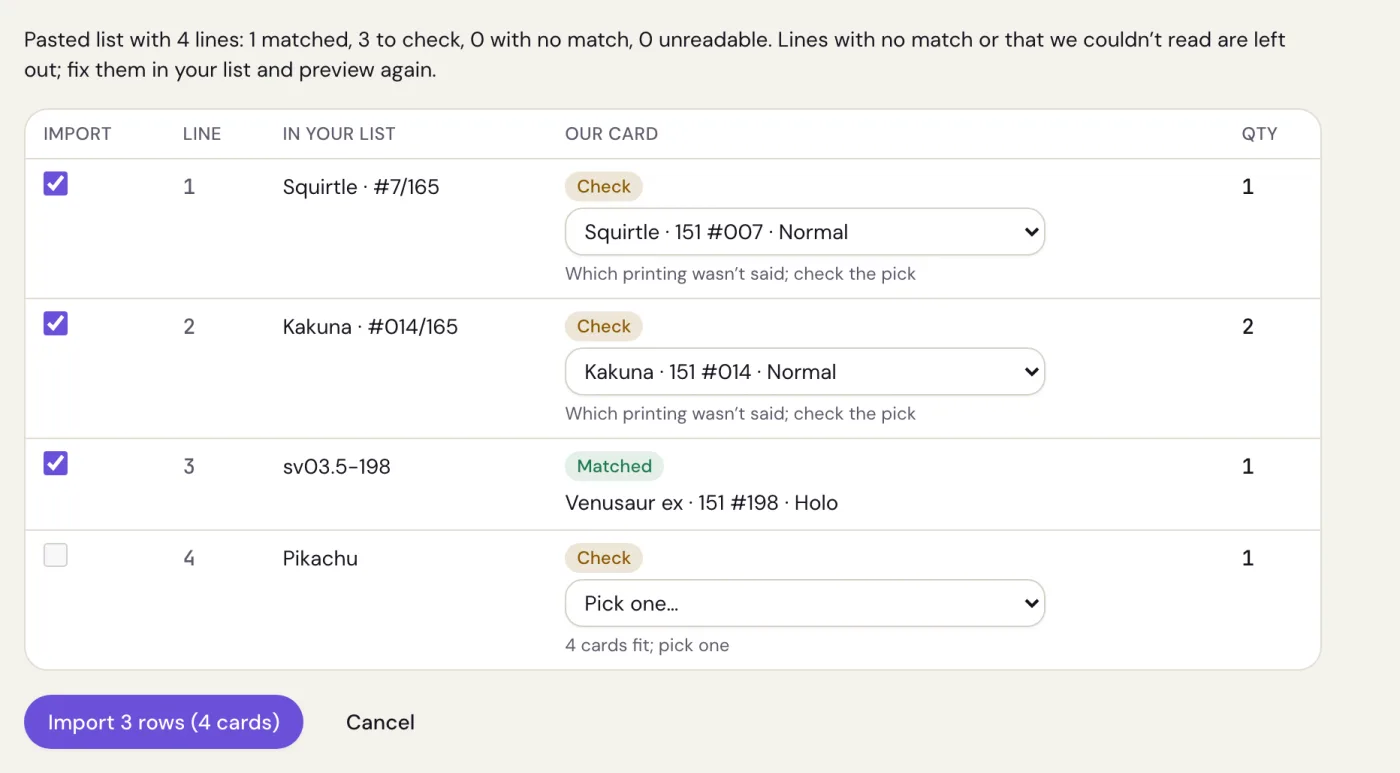
Read the signed-in review
This is the complete, account-aware review before saving. The public preview cannot compare your file with a private collection.
- Matched means we found the card and the printing.
- Check means we found the card but not which printing, or more than one card fits. We show our best pick; change it if it’s wrong. For a line like “Pikachu”, choose from Pick one….
- No match and Unreadable lines are left out. Fix them in your list or file and preview again.
- Cards in other languages, like Japanese cards, show as No match with a note saying so. Our catalog is English for now, so they’re left out rather than added as the English card.
- Other games in a mixed export are not imported as Pokémon cards. Keep those records in your original file or another tracker.
- Sealed products from Collectr come over when the product and its set are clear. Anything else, like a Pokémon Center box, asks you to add it by hand.
- Already in your collection marks cards you may have added before. Those start unticked, so an import doesn’t double them up.
Untick any row you don’t want, then import.
Fix a match without changing the card’s identity
- Wrong set: include the full set name and collector number. A name alone can describe many cards; “Base Set” and “Base Set 2” are different sets.
- Right card, wrong finish: check the normal, holo and reverse holo choices. Stamps, Shadowless and special foil patterns need their own exact printing when available. Do not accept an ordinary reverse holo for a pattern you meant to keep separate.
- Number looks different: keep the printed number, including any letters. A number such as “199/165” identifies card 199; the denominator helps distinguish the set.
- Columns look shifted: choose Adjust columns and check the name, set, number and quantity columns before retrying. A file that opens in a spreadsheet can still have the wrong fields mapped.
- No eligible card or product: leave that row out and retain it in your exception list. Changing its language, set or printing just to force a match creates a false record.
Use card-number help or search to identify a troublesome line. The preview is the place to stop and correct it; a high matched-row count is not a substitute for checking your sample.
Keep your folders as binders
If your export keeps cards in folders or portfolios (like Dragon Shield or PriceCharting folders, Collectr portfolios, Dex categories, or a folder column in your spreadsheet), the signed-in review offers Make a binder for each folder. It’s on by default. Each folder becomes a binder, with the cards in file order on 9-pocket pages, ready to arrange. Folders you already have a binder for are skipped.
What you paid comes too
Purchase costs and fees can come over when your file includes supported columns. They remain your own records. Market-price or estimated-value columns are not imported as purchase costs, and House of Holos does not supply market valuations. A blank cost is unknown, not a free card. Check the spreadsheet guide if you need to supply costs yourself.
Reconcile before importing the rest
After saving the sample, use From your import in My collection to inspect only those cards. Compare quantities, condition, printing, costs and any binders with the original file. For example, a sample with quantities 1, 2 and 4 should account for seven copies, even though it has only three rows.
Keep a short exception list for unmatched cards, unsupported languages and products you still need to record. Your old total may include those items, so the correct imported total can be smaller. Once the sample agrees, import the remaining groups and keep the original export as your reference.
Still using your old app?
Some collectors keep their old app for a while. Import a newer export whenever you like: if the file has cards you already have, the preview offers Update cards I already have to this file’s counts.
- Review changes lists what would happen first, card by card: “+2 (1 → 3)”, “−1 (3 → 2)” or “new ×2”. Nothing changes until you press Apply.
- Only cards in the file are compared. Cards that aren’t in it stay exactly as they are.
- Copies taken off aren’t recorded as sales, and new copies come in with what you paid from the file, if it has it.
- A card you keep in several rows on purpose is left for you to change in My collection.
- Undo on the result puts the counts back, unless you’ve changed those cards since.
Changed your mind?
Every import is listed under Recent imports on the import page. Undo import reverses that run’s additions or supported count updates. Review the result: cards changed since an update can be kept rather than overwritten, and the app tells you what it kept. Download a fresh collection CSV from your account page after reconciling, so you have a new record to compare with the original.